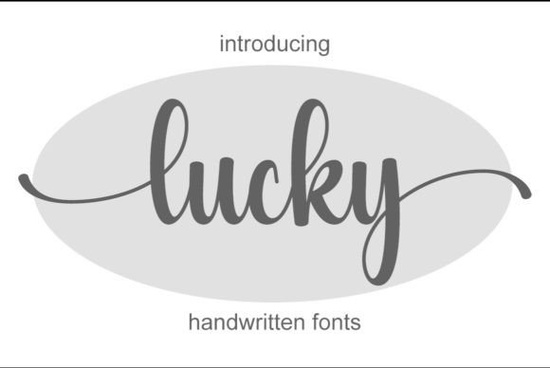
If you’ve been searching for a handwritten font that feels personal but still polished, Lucky Font might be exactly what your next project needs. It’s light, elegant, and surprisingly versatile whether you’re designing a wedding invitation, refreshing your brand’s logo, or creating social media graphics that stand out without shouting. What makes it especially handy is that it’s PUA encoded, so all those pretty alternate characters and swashes are just a click away in most design software.
What kinds of projects work best with Lucky Font?
This isn’t the kind of font you save for one specific use. Because of its clean yet expressive strokes, it adapts well across different mediums. Try it on:
- Business cards adds personality without sacrificing professionalism
- Social media quote posts feels hand-lettered but stays legible at small sizes
- Product packaging or labels especially great for handmade goods, candles, or boutique skincare
- Wedding stationery pairs beautifully with minimalist layouts or floral backgrounds
If you liked the delicate flow of The Wedding Signature, you’ll find Lucky has a similar warmth but with more flexibility for commercial use.
How easy is it to access all the special characters?
One of the biggest frustrations with script fonts is hunting through glyphs or installing extra files just to get an underline or swash. Lucky Font avoids that by being fully PUA (Private Use Area) encoded. That means if your software supports OpenType features like Adobe Illustrator, Photoshop, Canva Pro, or Affinity Designer you can toggle alternates, ligatures, and stylistic sets right from the character panel. No digging through folders or guessing which file contains the “fancy R.”
For comparison, fonts like Letterland or Rainbow also offer alternates, but not always with the same level of built-in accessibility. Lucky keeps it simple.
Can I use this for client work or print-on-demand products?
Yes and that’s where it really shines. Many designers and small shop owners need fonts they can confidently use across multiple platforms and products without worrying about licensing hiccups. Lucky Font comes with a commercial license, so you’re covered for physical goods, digital templates, logos, and even merchandise sold on Etsy, Redbubble, or Shopify.
It’s especially useful if you’re creating mockups for clients who want something that feels custom-lettered but doesn’t require hiring a calligrapher. Pair it with a clean sans-serif (like Montserrat or Lato) and you’ve got a professional combo ready to go.
If you’re already using Montana for rustic branding, consider adding Lucky to your toolkit for when you need something softer and more refined.
How does it compare to other handwritten fonts on Creative Fabrica?
Lucky sits in that sweet spot between casual and formal. It’s not as bouncy as Rainbow, nor as structured as OurStory. Instead, it leans into graceful, slightly uneven letterforms that mimic real handwriting the kind you’d see in a thoughtful note or a boutique shop sign.
What sets it apart is consistency. Even at smaller sizes or in all-caps settings, the letters hold their shape without looking cluttered. That’s rare in script fonts, which often lose legibility when scaled down.
You can preview how it looks in different contexts by checking out Lucky Font directly on Creative Fabrica they usually include mockups showing it on mugs, tote bags, and signage.
Any tips for getting the most out of this font?
A few small tweaks can make a big difference:
- Use tracking (letter spacing) sparingly. Too much space breaks the natural flow; too little makes it feel cramped. Start with -20 to +10 and adjust by eye.
- Pair it with a neutral sans-serif. Avoid competing scripts. A simple font like Helvetica Neue or Quicksand lets Lucky take center stage.
- Try it in all lowercase first. The lowercase set has the most character variation and feels the most organic.
- Enable contextual alternates. This feature automatically swaps in better-fitting letter combinations it’s usually turned on by default in modern design apps.
If you’re working on wedding designs, try layering it subtly over watercolor textures or pairing it with The Wedding Signature for headers and body text contrast.
Quick checklist before you start:
- Download both OTF and TTF versions some apps prefer one over the other
- Install the font before opening your design software (restart if needed)
- Check your software’s glyph panel to explore alternates
- Save a style guide snippet with your favorite letter combos for reuse
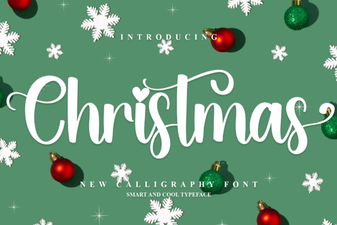 Designer Christmas Fonts for Seasonal Projects
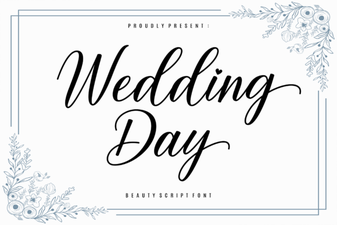 Beautiful Wedding Typography & Free Font Downloads
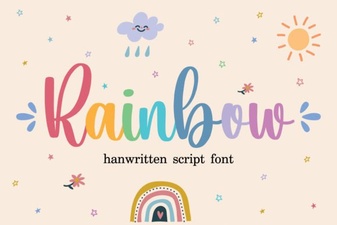 Rainbow Font Projects and Creative Design Ideas
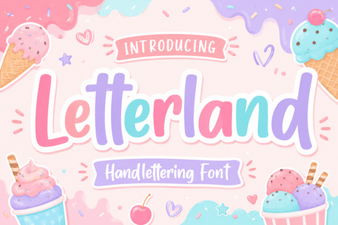 Letterland Font for Teachers and Designers
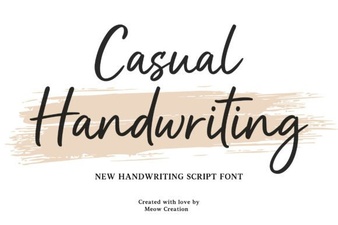 Casual Fonts for Modern Handwritten Design Projects
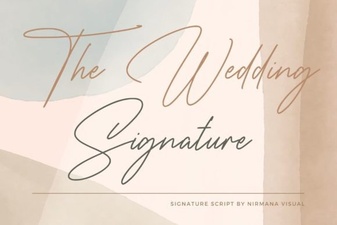 The Signature Wedding Font for Your Creative Projects